PagerDuty
Connect Netdata AI to your PagerDuty account so that, while it investigates an alert or anomaly, it can read the incidents, on-call schedules and change events that explain it.
This is an MCP Connection: Netdata Cloud reads from PagerDuty. It does not send alerts to PagerDuty — for that, see PagerDuty notifications.
Benefits
- Correlate a Netdata alert or anomaly with the PagerDuty incident already tracking it, including its notes and timeline.
- Find past incidents similar to the one under investigation, and how they were handled.
- See who is on call for the affected service and which escalation policy applies.
- Tie a metric change to the change events PagerDuty recorded for the service.
- Read-only by design: Netdata never creates, acknowledges or resolves incidents.
- Each user connects with their own PagerDuty identity, so Netdata AI sees only what that user is allowed to see.
How it works
- Netdata Cloud acts as an MCP client to PagerDuty's hosted MCP server —
https://mcp.pagerduty.com/mcp, orhttps://mcp.eu.pagerduty.com/mcpfor accounts in the EU service region — over HTTPS. - Each user authorizes Netdata once through PagerDuty Classic User OAuth. Netdata requests the
readpermission scope only, stores the token encrypted, and refreshes it as needed. - When a user starts a conversation or an investigation with this connection selected, Netdata AI calls the enabled read-only tools, such as tools for incidents, alerts and notes, services, teams and users, schedules and on-calls, escalation policies, change events and analytics, and uses the results in its analysis.
- Any tool that modifies PagerDuty data (create an incident, add a responder, and so on) is discovered but cannot be enabled.
Requirements
- A Netdata Cloud account on a Paid plan.
- Space admin access to create the connection. Every user who wants Netdata AI to use PagerDuty then authorizes it individually.
- A valid PagerDuty account with Advanced Permissions. PagerDuty lists Advanced Permissions as a requirement for its MCP server.
- A PagerDuty user on the account you connect. Each Netdata user authorizes with their own PagerDuty identity.
- Your PagerDuty account URL, such as
https://acme.pagerduty.com.
Support
If you need help with this integration, contact Netdata support at https://www.netdata.cloud/support/.
Integration walkthrough
In PagerDuty
Netdata uses PagerDuty Classic User OAuth, so there is no API key or Scoped OAuth app installation to create in PagerDuty. Confirm that your PagerDuty account has Advanced Permissions, then note your account URL — the address in your browser once you are signed in to PagerDuty — because Netdata asks for it in the next section. Accounts hosted in the EU service region use a *.eu.pagerduty.com address.
In Netdata
-
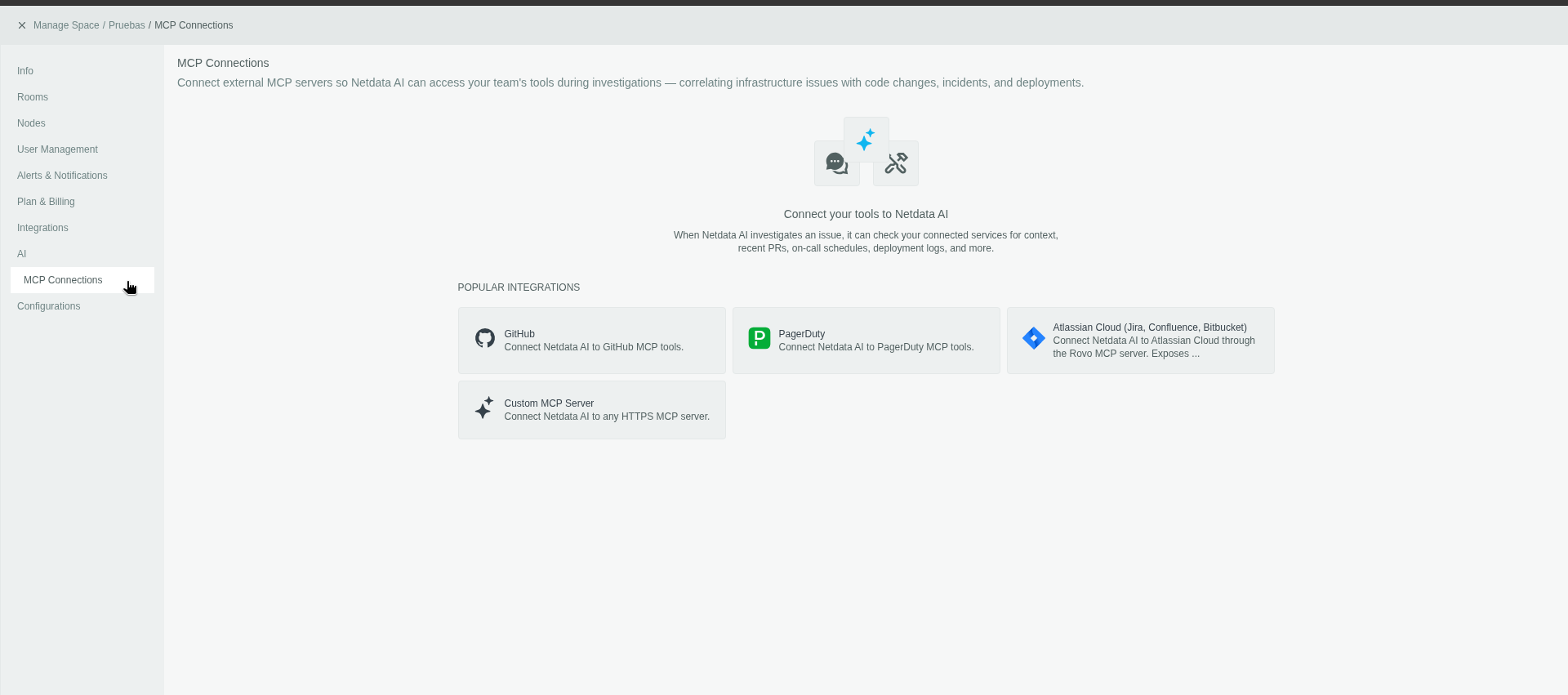
Sign in to Netdata Cloud, open the Space you want to connect, and go to Settings → AI → MCP Connections.
-
Select PagerDuty.
-
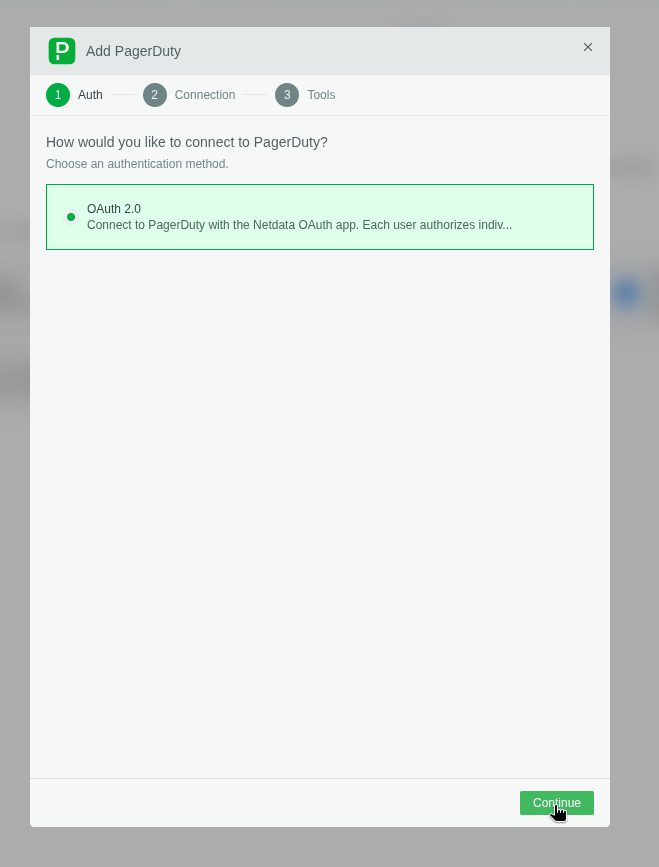
Select OAuth 2.0 as the authentication method.
-
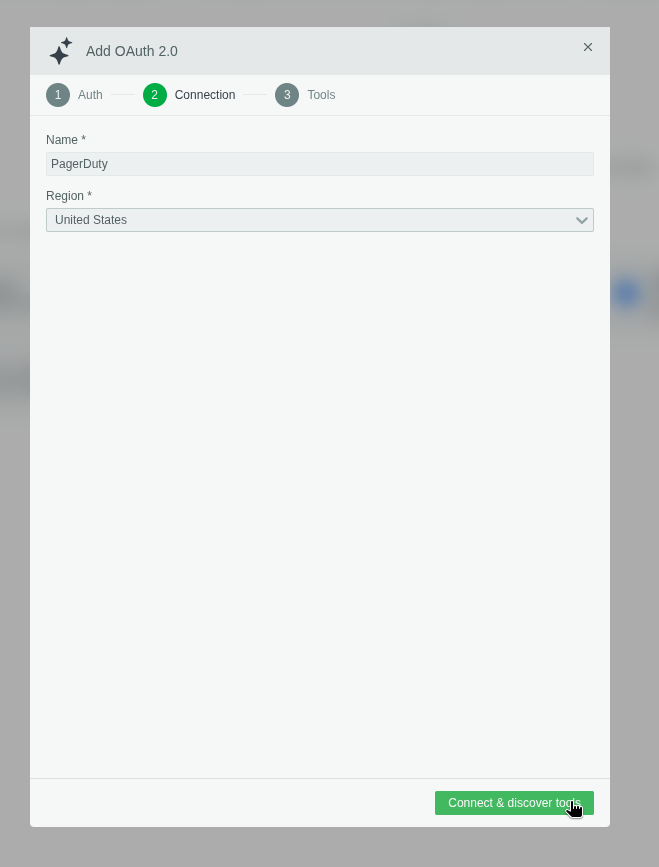
Enter a Name for the connection and your PagerDuty account URL, then click Connect & discover tools. The account you authorize with in the next step has to belong to this URL.
-
You are redirected to PagerDuty. Sign in if prompted, review the Classic User OAuth
readaccess requested, and click Authorize. PagerDuty sends you back to Netdata and the connection is established.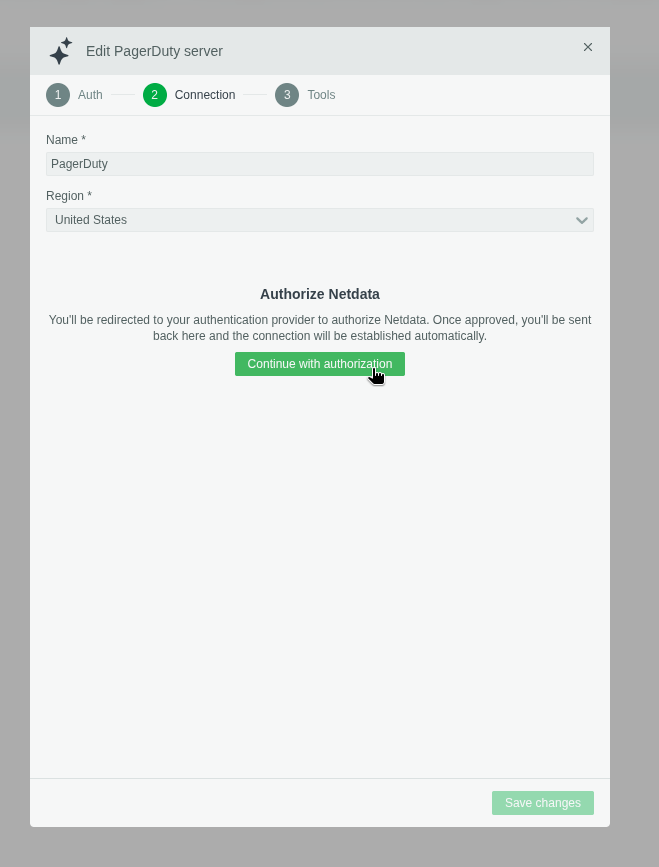
-
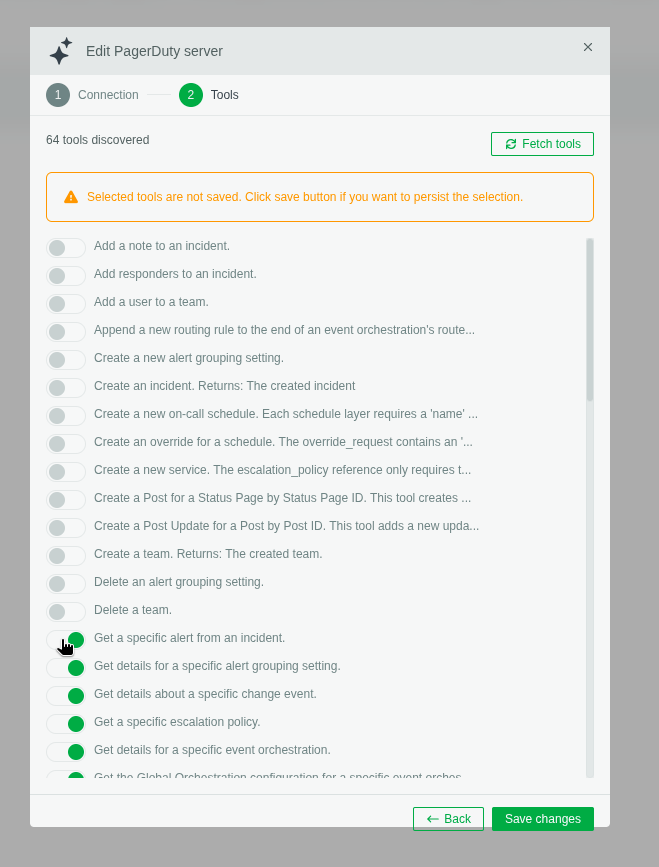
Netdata lists the tools PagerDuty exposes. Select the ones you want available to Netdata AI. Only read-only tools can be enabled.
-
Click Save Changes.
Other users in the Space authorize PagerDuty for themselves the first time they use the connection; they are taken through step 5 with their own PagerDuty identity.
Using the connection
Select the PagerDuty connection in a conversation, or when creating a report or scheduled investigation. See Using MCP servers.
How to uninstall
In Netdata. A Space admin deletes the PagerDuty connection under Settings → AI → MCP Connections. Netdata removes the stored credentials and asks PagerDuty to revoke each user's token. A single user can instead disconnect their own PagerDuty authorization, which removes their credentials and asks PagerDuty to revoke only their token, leaving the connection in place for others.
In PagerDuty. If your account has the OAuth Apps page under Integrations (an Early Access feature), Netdata appears in the installed apps list once a user has authorized it — Classic User OAuth apps require no installation, but authorized ones are listed there. From that page, anyone who has authorized Netdata can revoke their own authorization, and an Admin can revoke all users' tokens or uninstall the app. Revoking in PagerDuty only stops Netdata's access for that authorization; the connection stays configured in Netdata until it is deleted there. See Scoped OAuth Apps.
Do you have any feedback for this page? If so, you can open a new issue on our netdata/learn repository.